Who Should Use This Article?
This article is intended for:
- Head Office Administrators responsible for creating and managing organisation-wide forms.
- Site Administrators responsible for managing forms available at their site.
Permissions Required
- Head Office Administrator
- Site Administrator
Overview
The Manage Forms area allows administrators to create, organise and manage Digital and Printable Forms used within the Food Safety Program.
From this screen you can:
- View all available forms.
- Create Digital and Printable Forms.
- Search, filter and sort forms.
- Identify where a form originated.
- Open forms for editing or review.
- Clone existing forms where permissions allow.
- Access additional form management options.
Before You Begin
Ensure you:
- Have Administrator access to the Food Safety Module.
- Have permission to access Manage Forms.
Accessing Manage Forms
- From the left navigation menu, select Food Safety.
- Select Manage Forms.
Understanding the Manage Forms Screen
The Manage Forms screen provides an overview of all forms available to you. Depending on your permissions, you may see forms supplied by SoupedUp, forms created by Head Office and forms created at your site.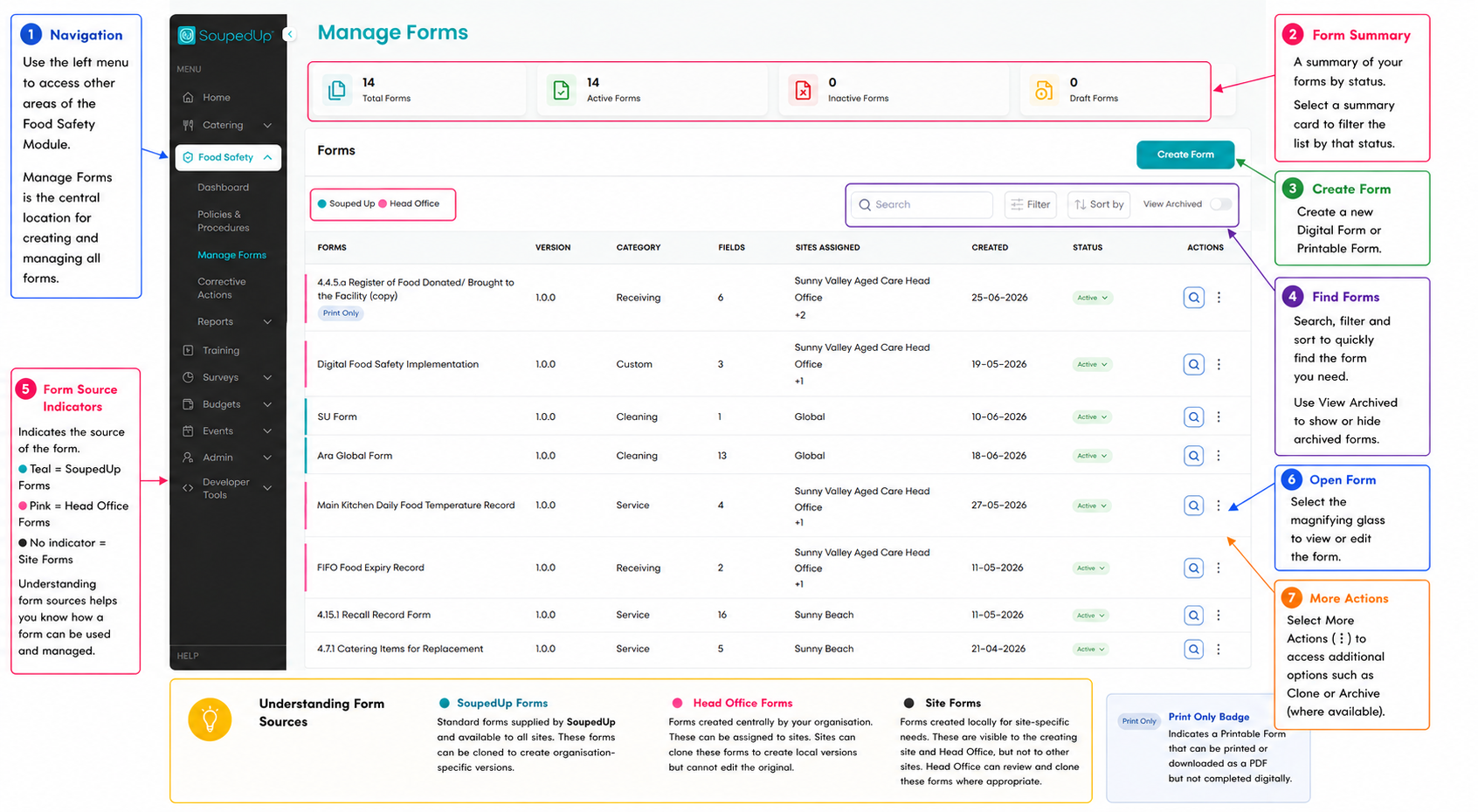
Form Summary
The summary cards at the top of the page provide a quick overview of the forms available within your organisation.
These cards display:
- Total Forms
- Active Forms
- Inactive Forms
- Draft Forms
Creating a Form
Select Create Form to create either a:
- Digital Form
- Printable Form
Detailed instructions are available in the following articles:
- Creating a Digital Form
- Creating a Printable Form
Finding a Form
Use the available tools to quickly locate forms.
You can:
- Search by form name.
- Filter the form list.
- Sort the form list.
- Display or hide archived forms.
Understanding Form Sources
Forms displayed within the Food Safety Program may originate from one of three sources.
SoupedUp Forms
SoupedUp Forms are standard forms supplied with the Food Safety Program.
These forms:
- are available to all sites
- can be cloned to create organisation-specific versions
- remain available as the original SoupedUp template
Head Office Forms
Head Office Forms are created and managed centrally by your organisation.
These forms:
- can be assigned to one or more sites
- are available to assigned sites
- can be cloned by assigned sites to create site-specific versions
- remain centrally managed by Head Office
Site Forms
Site Forms are created locally to support site-specific operational requirements.
These forms:
- are visible to the creating site
- are visible to Head Office
- are not visible to other sites
- can be reviewed and cloned by Head Office where broader adoption is required
Printable Forms
Some forms are configured as Printable Forms rather than Digital Forms.
Printable Forms display a Print Only badge beneath the form name and are designed to be:
- printed
- completed manually
- downloaded as a PDF
Printable Forms cannot be completed electronically within the Food Safety Program.
Opening a Form
Select the Magnifying Glass icon to open a form.
Depending on your permissions, you may be able to:
- View the form.
- Review form details.
Additional Actions
Select the More Actions (⋮) menu to access additional management options.
Depending on your permissions, available actions may include:
- Clone
- Archive
- Other form management options
Good to Know
- SoupedUp recommends creating organisation-wide forms at Head Office to support version control and consistency across all sites.
- Sites can clone assigned Head Office Forms to create site-specific versions where operational requirements differ.
- Site Forms remain visible only to the creating site and Head Office.
- Form version numbers assist with document control.
- Archived forms can be displayed using the View Archived option.
Related Articles
- Understanding Forms in the Task Board
- Creating a Digital Form
- Creating a Printable Form
- Completing a Digital Form in the Task Board
- Viewing and Printing a Printable Form in the Task Board
Was this article helpful?
That’s Great!
Thank you for your feedback
Sorry! We couldn't be helpful
Thank you for your feedback
Feedback sent
We appreciate your effort and will try to fix the article