Understanding Form Submissions in the Food Safety Module
Who Should Use This Article?
This article is intended for users responsible for reviewing completed form records within the Food Safety Module, including:
- Food Safety Supervisors
- Site Managers
- Quality and Compliance Teams
- Operations Managers
- Head Office Administrators
- Auditors and Compliance Personnel
Overview
The Form Submissions report allows users to review records that have been submitted through Digital Forms within the Food Safety Module.
Examples may include:
- Goods Receival Records
- Staff Illness Records
- Recall Records
- Cleaning Records
- Custom Forms
The information displayed within the report will vary depending on the selected form and its configuration.
Accessing Form Submissions
To access Form Submissions:
- Navigate to Food Safety.
- Expand Reports.
- Select Form Submissions.
The Form Submissions landing page will be displayed.
Head Office Form Submission Overview
When Head Office users first open Form Submissions, an overview of form activity across all sites is displayed.
This overview allows users to monitor submission activity across the organisation before selecting an individual site to review detailed form submissions.
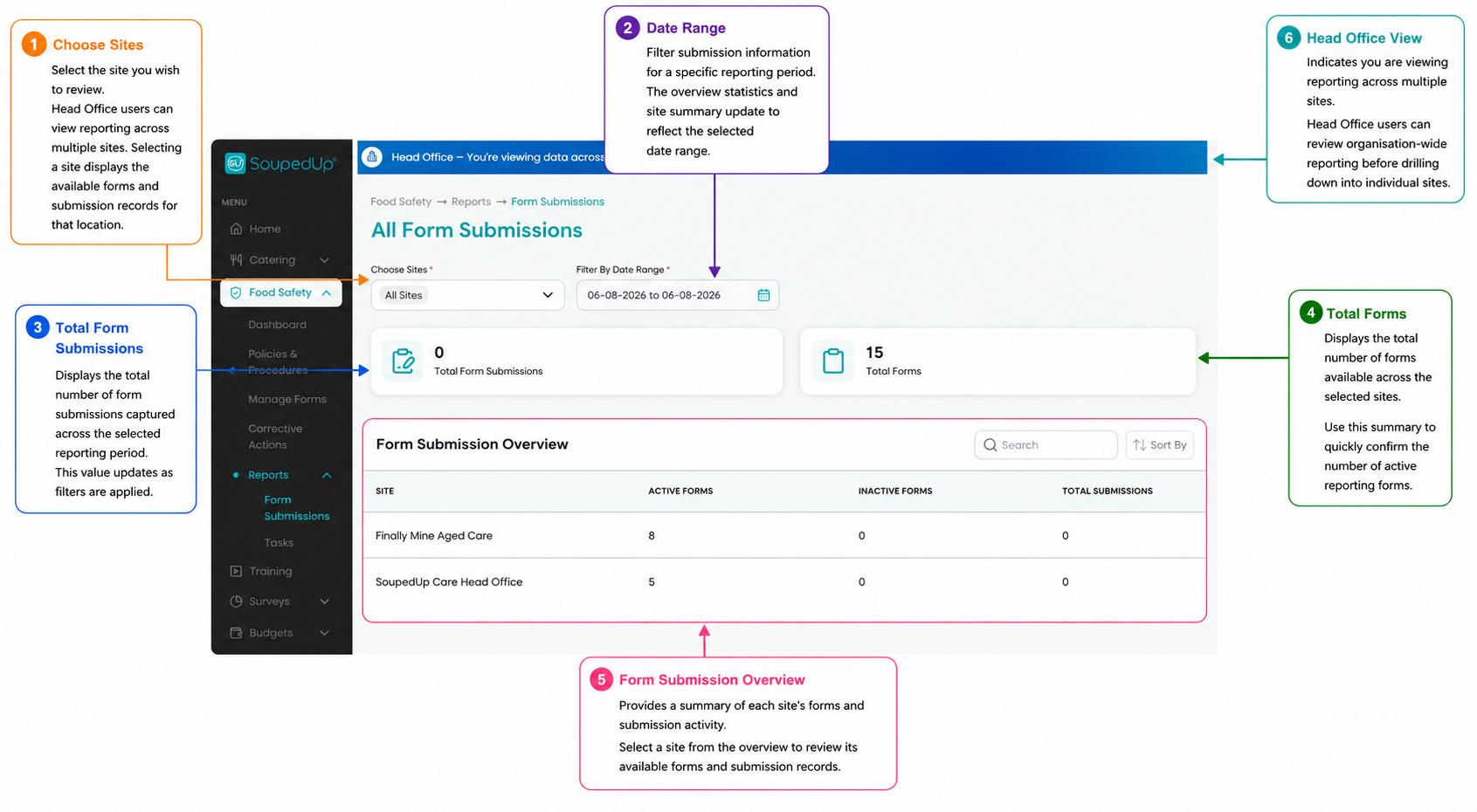
1. Choose Sites
Select the site you wish to review.
Head Office users can view reporting across multiple sites. Selecting a site allows you to review the forms and submission activity for that location.
2. Date Range
Filter submission information for a specific reporting period.
The overview statistics and site summary update to reflect the selected date range.
3. Total Form Submissions
Displays the total number of form submissions captured during the selected reporting period.
4. Total Forms
Displays the total number of forms available across the selected sites.
5. Form Submission Overview
Displays a summary of available forms and submission activity for each site.
This overview allows Head Office users to quickly identify submission activity before reviewing a specific site.
6. Head Office View
The banner indicates you are viewing organisation-wide reporting across multiple sites.
Site Form Submission View
Once a site has been selected, or when accessing Form Submissions as a Site User, the Form Submissions page displays the forms available for that site.
Select a form to review submission records and reporting information.
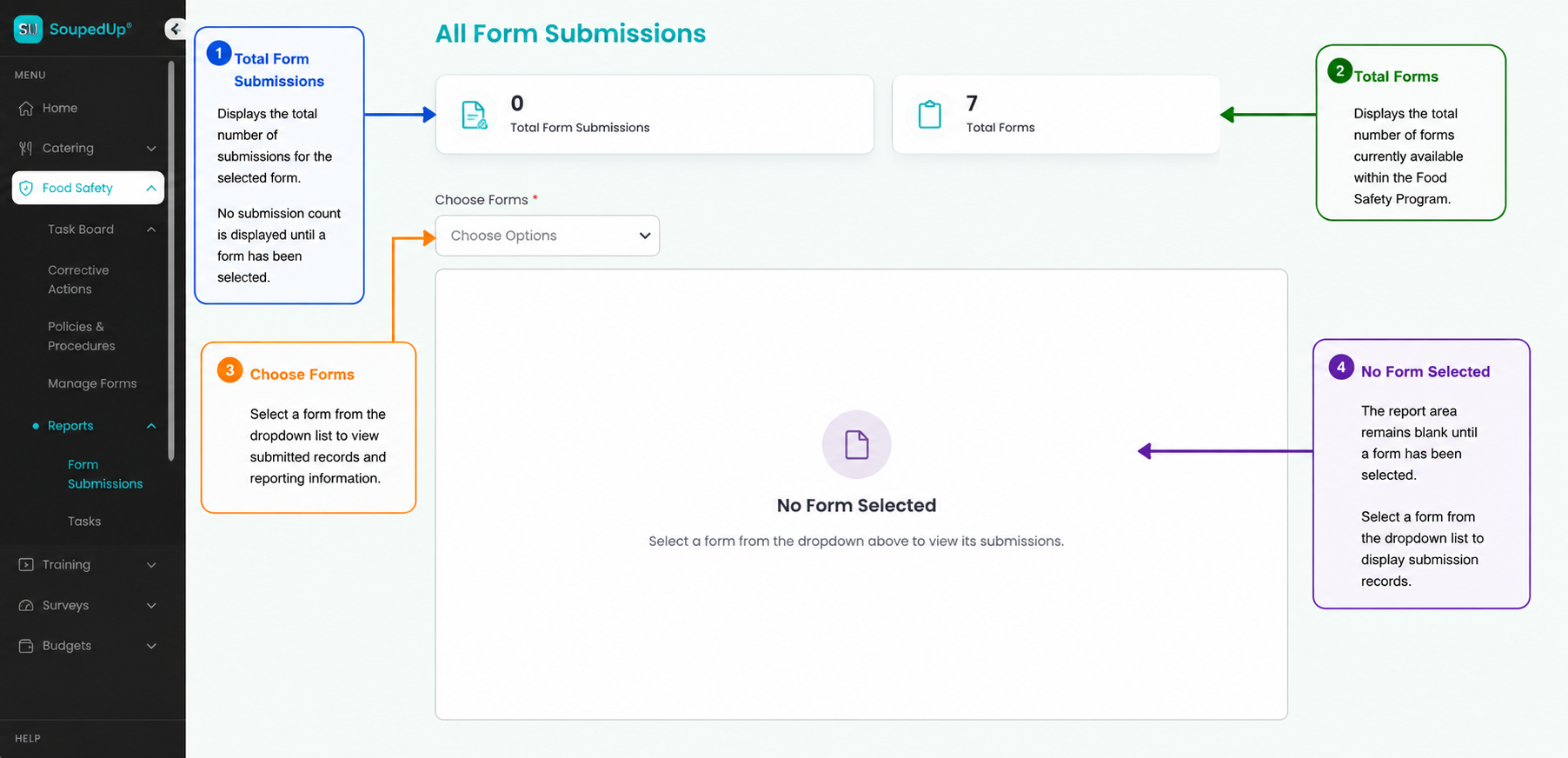
Understanding the Form Submissions Landing Page
When the Form Submissions page first opens, no report data is displayed.
1. Total Form Submissions
Displays the total number of submissions for the selected form.
No submission count is displayed until a form has been selected.
2. Total Forms
Displays the total number of forms currently available within the Food Safety Program.
3. Choose Forms
Select a form from the dropdown list to view submitted records and reporting information.
4. No Form Selected
The report area remains blank until a form has been selected.
Select a form from the dropdown list to display submission records.
Viewing Form Submission Records
Once a site (where applicable) and form have been selected, the report displays all available submission records for the selected form.
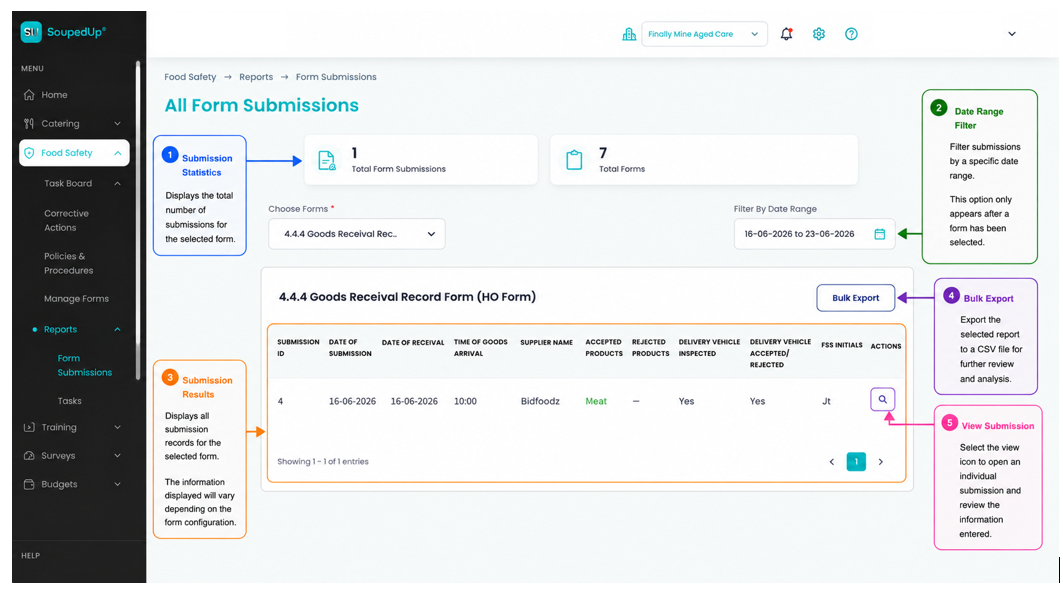
1. Submission Statistics
Displays the total number of submissions for the selected form.
2. Date Range Filter
Filter submission records by a specific date range.
The report updates to display only submissions captured during the selected reporting period.
3. Submission Results
Displays all submission records for the selected form.
The information displayed will vary depending on the selected form and the fields configured within that form.
For example, a Goods Receival Record will display different information to a Staff Illness Record or Recall Record.
4. View Submission
Select the View icon to open and review an individual submission.
This allows users to review the information entered when the form was completed.
Exporting Form Submission Data
The Bulk Export function allows users to export submission records for further review and analysis.
To export submission data:
- Select the required Site (Head Office users only).
- Select the required Form.
- Apply a Date Range if required.
- Select Bulk Export.
The report will be exported as a CSV file which can be opened in Microsoft Excel.
Result
You have successfully reviewed and exported Form Submission records within the Food Safety Module.
Good to Know
- Head Office users begin with an organisation-wide overview before selecting a site.
- Site users can immediately select a form to review submission records.
- A form must be selected before submission data can be viewed.
- Submission information varies depending on the selected form.
- Reports can be filtered using the Date Range filter.
- The Bulk Export function exports data as a CSV file.
- Exported files can be opened and reviewed in Microsoft Excel.
- Individual submissions can be reviewed using the View icon.
Related Articles
Was this article helpful?
That’s Great!
Thank you for your feedback
Sorry! We couldn't be helpful
Thank you for your feedback
Feedback sent
We appreciate your effort and will try to fix the article