Who Should Use This Article?
- Head Office Administrators
- Site Administrators
- Food Safety Coordinators
- Managers and Supervisors
- Compliance and Quality Teams
- Auditors reviewing Food Safety records
Overview
Temperature Reports provide visibility of temperature monitoring activities recorded within the Food Safety Program.
Reports can be used to review historical temperature records, monitor compliance activities and support audit preparation.
Temperature Reports are available for:
- Appliance Logs
- Meal Logs
Temperature Reports can be filtered by date range and exported as CSV files for further review.
Accessing Temperature Reports
- Navigate to Food Safety.
- Select Reports.
- Select Tasks.
- Select either:
- Appliance Logs
- Meal Logs
The Temperature Reports page displayed will depend on your access level.
- Head Office users are presented with an organisation-wide overview of temperature monitoring across all sites.
- Site usersare taken directly to their site's Temperature Reports.
Head Office Temperature Reports Overview
When Head Office users first open Temperature Reports, an organisation-wide overview of temperature monitoring activity across all sites is displayed.
This overview allows users to monitor temperature compliance across multiple locations before reviewing detailed records for an individual site.
Temperature Reports are accessed using the Appliance Logs or Meal Logs report tabs.
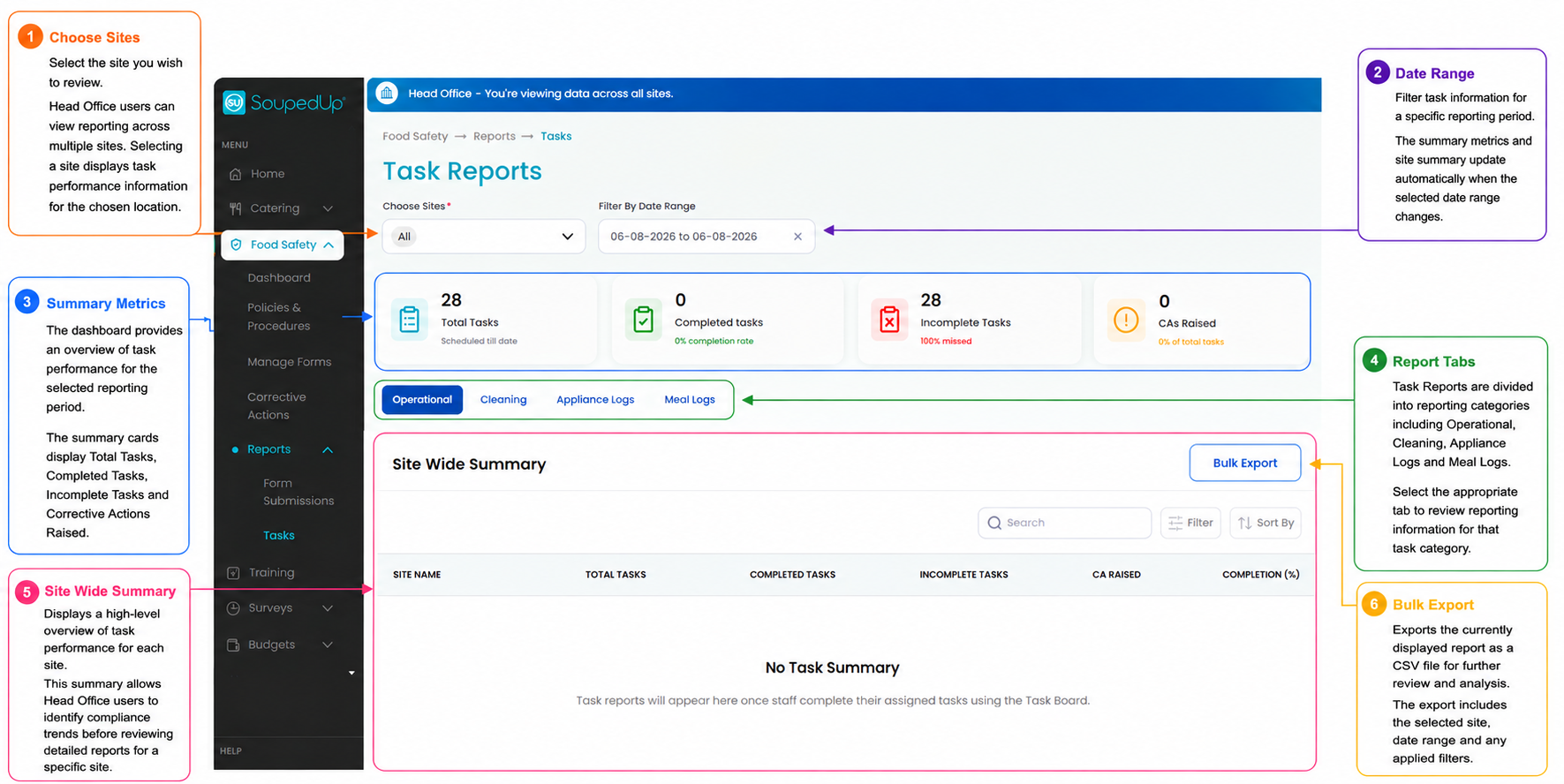
Note: Temperature Reports use the same Head Office reporting dashboard as Task Reports. Select either the Appliance Logs or Meal Logs tab to display the required temperature report.
Site Temperature Reports
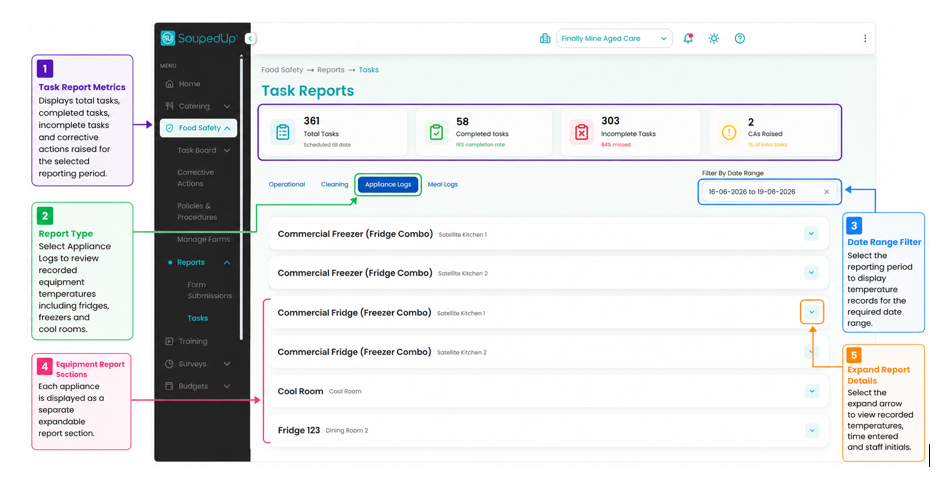
Once a site has been selected, or when accessing Temperature Reports as a Site User, the report displays temperature monitoring information for that site.
The reporting functions remain the same for both Head Office and Site users once a site has been selected.
The Appliance Logs and Meal Logs tabs provide different views of temperature monitoring information while using the same reporting interface.
Key Features
| Feature | Description |
|---|---|
| Report Metrics | Displays total tasks, completed tasks, incomplete tasks and corrective actions raised for the selected reporting period. |
| Appliance Logs | Displays temperature records for equipment such as fridges, freezers and cool rooms. |
| Meal Logs | Displays temperature records for meal service activities. |
| Date Range Filter | Filters report data for the selected reporting period. |
| Expand Report Details | Opens detailed temperature records for review. |
| Bulk Export | Downloads the currently displayed report data as a CSV file. |
Reviewing Appliance Temperature Reports
Once a site has been selected, the Appliance Logs report provides a historical record of equipment temperature monitoring activities.
Examples include:
- Cool Rooms
- Fridges
- Freezers
- Blast Chillers
- Refrigeration Equipment
To review appliance temperature records:
- Select Appliance Logs.
- Apply the required Date Range.
- Locate the appliance to be reviewed.
- Select the Expand arrow.
- Review the recorded temperature information.
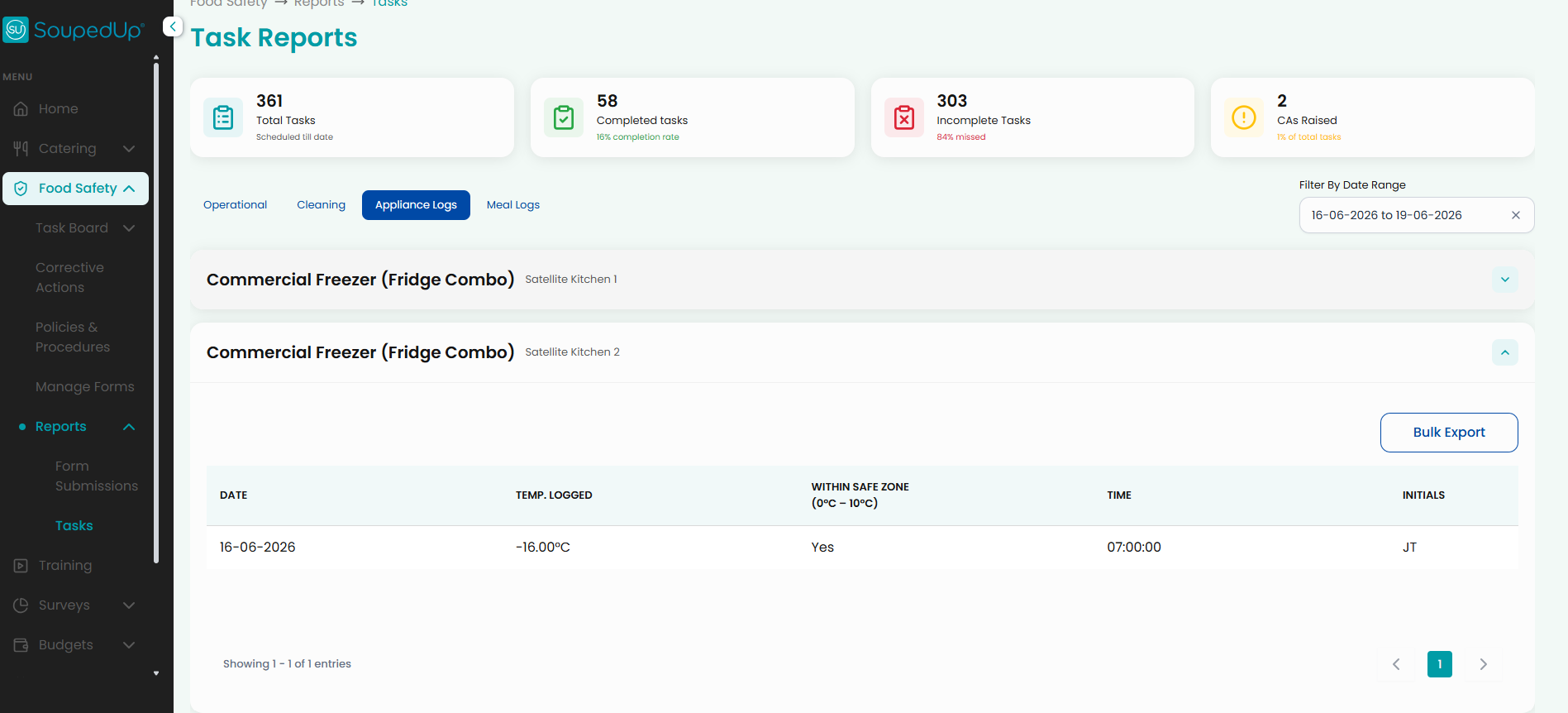
Appliance Report Information
| Field | Description |
| Date | Date the temperature was recorded. |
| Temp Logged | Recorded appliance temperature. |
| Within Safe Zone | Indicates whether the recorded temperature falls within the configured safe operating range. |
| Time | Time the temperature was recorded. |
| Initials | Staff member initials entered during temperature recording. |
Reviewing Meal Temperature Reports
Once a site has been selected, the Meal Logs report provides a historical record of meal service temperature monitoring activities.
Examples include:
- Breakfast
- Lunch
- Dinner
To review meal temperature records:
- Select Meal Logs.
- Apply the required Date Range.
- Locate the meal period to be reviewed.
- Select the Expand arrow.
- Review the recorded temperature information.
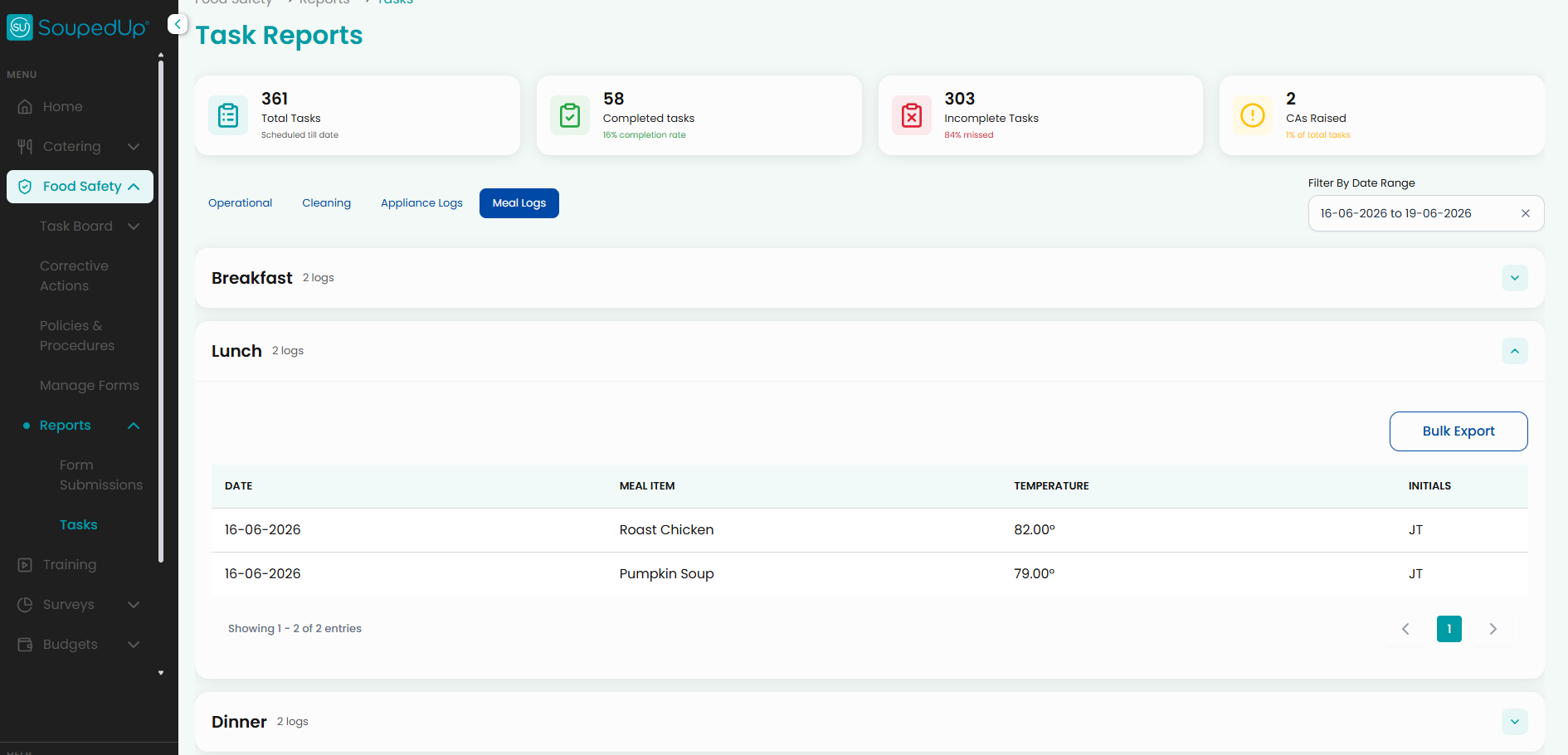
Meal Report Information
| Field | Description |
| Date | Date the temperature was recorded. |
| Meal Item | Name of the meal item recorded. |
| Temperature | Recorded food temperature. |
| Initials | Staff member initials entered during temperature recording. |
Exporting Reports
Temperature Reports can be exported using the Bulk Export function.
When selected, the currently displayed report data is downloaded as a CSV file.
To export a report:
- Select the required Site (Head Office users only).
- Select the required report tab (Appliance Logs or Meal Logs).
- Apply the required Date Range.
- Select Bulk Export.
- Open or save the generated CSV file.
Result
Temperature monitoring records can be reviewed, filtered and exported to support operational monitoring, compliance activities and audit preparation.
Good to Know
- Head Office users begin with an organisation-wide overview before selecting a site.
- Site users are taken directly to their site's Temperature Reports.
- Temperature Reports are accessed using the Appliance Logs and Meal Logs report tabs.
- Appliance Logs and Meal Logs use the same reporting workflow.
- Appliance reports display equipment-specific temperature records.
- Meal reports display food service temperature records.
- Reports are filtered using the selected Date Range.
- Reports can be exported as CSV files using the Bulk Export function.
- Exported CSV files can be opened in Microsoft Excel and other spreadsheet applications.
- Additional report types may be available depending on your organisation's Food Safety Program configuration.
Related Articles
Was this article helpful?
That’s Great!
Thank you for your feedback
Sorry! We couldn't be helpful
Thank you for your feedback
Feedback sent
We appreciate your effort and will try to fix the article